You type google.com into your browser and press Enter.
Less than 200 milliseconds later, a fully rendered page appears on your screen. Somewhere between your keyboard and that result, your request traveled through physical cables buried under oceans, bounced between data centers on different continents, passed through a dozen pieces of software, and returned with the exact content you asked for — at a speed your eyes can barely register.
Most people treat this as magic and move on. Developers who understand what’s actually happening inside those 200 milliseconds build better things, debug problems faster, and make design decisions grounded in how the system actually behaves rather than how they imagine it does.
This is what’s really happening — explained without unnecessary jargon, but without dumbing it down to the point of being useless.
First: What the Internet Actually Is
There’s a persistent misconception worth clearing up before anything else.
The internet is not a cloud. It’s not a wireless signal floating through the air. It’s not a metaphysical space where data lives.
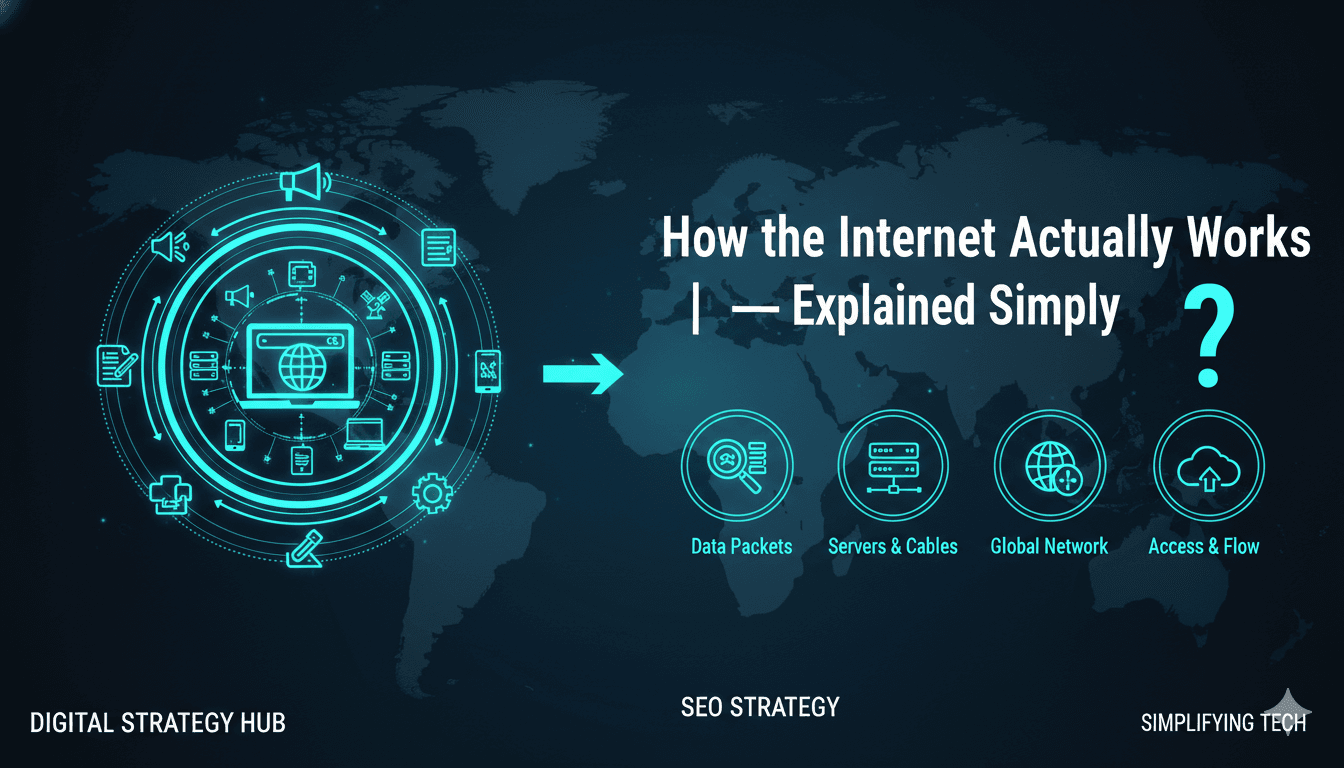
The internet is physical infrastructure — an enormous global network of cables, routers, servers, and data centers that are physically connected to each other. Undersea fiber optic cables the width of a garden hose carry the majority of international internet traffic across the ocean floor. Data centers are warehouses full of physical machines stacked in racks, consuming enormous amounts of electricity and cooling. Your home router is a physical device that connects your devices to this physical network through wires or radio waves.
Understanding this matters because it explains something counterintuitive: why “the internet went down.” Not because a cloud evaporated, but because a physical cable was cut, a router failed, or a data center lost power. The internet is infrastructure, and infrastructure breaks.
With that grounding established, here’s what happens when you type a URL.
Step 1: Your Browser Needs to Translate the Address — DNS
You type github.com. Your browser understands human-readable addresses. The internet does not.
Every device connected to the internet has a numeric identifier called an IP address — something like 192.30.255.113. This is the actual address that routing infrastructure uses to direct traffic. Domain names like github.com exist purely for human convenience — nobody wants to memorize strings of numbers for every website they visit.
So before your browser can do anything else, it needs to find the IP address that corresponds to the domain name you typed. This translation happens through the Domain Name System — DNS — which functions essentially as the internet’s phone book.
Here’s the lookup sequence, simplified:
1. Browser cache. Your browser first checks whether it has recently looked up this domain and cached the result. If you visited github.com an hour ago, the IP is probably still stored locally. No network request needed.
2. Operating system cache. If the browser doesn’t have it, it asks your operating system — which maintains its own DNS cache. Still local. Still fast.
3. Your router. If neither cache has the answer, the request goes to your home router, which may have its own cache from other devices on your network that recently visited the same site.
4. Your ISP’s DNS resolver. Still no answer? The request leaves your home network and goes to your Internet Service Provider’s recursive DNS resolver — a server maintained by your ISP whose job is to handle these lookups on behalf of all its customers.
5. Root and authoritative DNS servers. If the ISP’s resolver doesn’t have a cached answer, it queries a root DNS server, then a top-level domain (TLD) server for .com, then the authoritative DNS server for github.com specifically — which is maintained by whoever registered the domain. That server has the authoritative answer: the IP address.
This entire chain — through up to five servers — typically completes in under 50 milliseconds. Often much faster, because every server along the way caches results aggressively. The first time you visit a domain, the full chain runs. Every subsequent visit hits a cache.
Step 2: Your Browser Opens a Connection — TCP and TLS
Now your browser has an IP address. Next it needs to establish a connection to the server at that address.
The internet uses a system called TCP (Transmission Control Protocol) to create reliable connections between devices. Before any actual content is requested, your browser and the server perform what’s called a TCP handshake — a brief back-and-forth that establishes the connection parameters and confirms both parties are ready to communicate.
Think of it like calling someone on the phone. You dial. They pick up and say “hello.” You say “hello” back. Only then does the actual conversation begin.
For the vast majority of modern websites — everything using HTTPS, which is essentially everything — there’s an additional handshake layered on top of TCP: the TLS handshake (Transport Layer Security). This is what creates the encrypted tunnel through which your data travels, so that anyone intercepting the network traffic between you and the server sees scrambled noise rather than your login credentials or personal information.
The TLS handshake involves an exchange of cryptographic keys, a verification of the server’s SSL certificate (which proves the server is actually who it claims to be), and agreement on an encryption method. Modern TLS 1.3 does all of this in a single round trip — roughly 30–50 milliseconds for a server on the same continent, longer for servers farther away.
This is why HTTPS matters and why Google has made it a ranking signal since 2014. It’s not just about the padlock icon. It’s about preventing every router between you and the server from reading or modifying your data in transit.
Step 3: Your Browser Makes an HTTP Request
Connection established, encryption active. Now your browser asks for what it actually wants.
HTTP (HyperText Transfer Protocol) is the language browsers and servers use to communicate. Your browser sends an HTTP request — a structured message that says, in essence: “GET the resource at this path, and here’s some information about who’s asking.”
A simplified version of that request looks like this:
GET /index.html HTTP/2
Host: github.com
User-Agent: Mozilla/5.0 (Chrome/120)
Accept: text/html
Accept-Encoding: gzip, br
This tells the server: get the main page, I’m using Chrome, I can accept HTML, and I can handle compressed responses (which saves bandwidth and speeds up transfer).
The server receives this request and processes it. For a static site, “processing” might mean retrieving a pre-built HTML file from disk and sending it back. For a dynamic web application, it might mean running server-side code, querying a database for personalized content, assembling an HTML response on the fly, and then sending it — all before the response leaves the server. This is why complex web applications feel slower than simple static pages: there’s more happening on the server between request and response.
Step 4: The Server Responds
The server sends back an HTTP response, which has two parts: headers and a body.
The headers are metadata about the response — what kind of content it is, how long it is, caching instructions, security policies, compression format, and most importantly, a status code that tells the browser whether things went well.
You’ve seen these status codes, even if you didn’t know they had names:
- 200 OK — everything worked, here’s your content
- 301 Moved Permanently — this URL has moved to another address (used in website redirects)
- 404 Not Found — the server exists but the requested resource doesn’t
- 500 Internal Server Error — the server exists but something broke on its end
- 503 Service Unavailable — the server is overloaded or down for maintenance
The body of the response, for a web page, is the HTML document — the raw markup that defines the structure and content of the page. At this point, your browser has received text. It hasn’t displayed anything yet.
Step 5: The Browser Renders the Page
This is where things get computationally interesting — and where a lot of modern web performance work is focused.
Receiving HTML is not the same as displaying a web page. Your browser has to process that HTML and turn it into pixels on your screen, which involves several distinct steps:
Parsing HTML → DOM. The browser reads the HTML markup and builds a tree structure called the Document Object Model (DOM) — a representation of every element on the page and how they relate to each other. This is what JavaScript can later manipulate to make pages interactive.
Fetching additional resources. As the browser parses the HTML, it discovers references to additional files it needs — CSS stylesheets, JavaScript files, images, fonts. Each of these triggers a new HTTP request. A typical modern web page makes between 40 and 100 separate HTTP requests by the time it’s fully loaded. This is why HTTP/2 (and now HTTP/3) matter: they allow multiple requests to travel over a single connection simultaneously, rather than waiting for each to complete before starting the next.
Parsing CSS → CSSOM. CSS files are parsed into the CSS Object Model — a separate tree structure describing how each element should be styled.
Combining DOM + CSSOM → Render Tree. The browser combines the two trees to determine which elements are actually visible and how they should appear.
Layout. The browser calculates the exact pixel position and size of every visible element on the page — this is computationally expensive, especially on pages with complex responsive layouts.
Paint and Composite. Finally, the browser draws the pixels to the screen in layers. Modern browsers do this on the GPU (graphics card) for performance, painting different layers independently and compositing them together.
This entire pipeline — parsing, fetching, layout, paint — is what Google’s Core Web Vitals metrics measure. LCP (Largest Contentful Paint) measures how long the largest visible element takes to render. CLS (Cumulative Layout Shift) measures how much elements jump around as resources load. FID and INP measure how quickly the page responds to user interaction. These are not arbitrary metrics — they’re measurements of specific, real bottlenecks in the rendering pipeline.
The Full Journey in One View
You press Enter
        ↓
DNS lookup → IP address resolved            (~5–50ms)
        ↓
TCP handshake → connection established      (~20–30ms)
        ↓
TLS handshake → encrypted tunnel ready     (~30–50ms)
        ↓
HTTP request sent → server receives it      (~5–30ms)
        ↓
Server processes → HTML response sent       (~5–200ms)
        ↓
Browser parses HTML → fetches CSS/JS/imgs   (~50–200ms)
        ↓
Render pipeline → pixels on screen         (~10–50ms)
        ↓
Page visible                               total: ~100–600ms
Every step in this pipeline is an optimization opportunity. CDNs (Content Delivery Networks) work by placing servers geographically closer to users, reducing the physical distance data has to travel and slashing latency. Browser caching works by storing DNS results, HTML, CSS, and images locally so repeat visits skip most of the pipeline entirely. Compression (gzip, Brotli) reduces the size of responses so they travel faster. HTTP/2 and HTTP/3 reduce the number of round trips required for multiple resources.
When a website is slow, it’s almost always because something in this pipeline has a bottleneck — usually too many resources, too large resources, or a slow server response time. Knowing the pipeline lets you identify where the problem is rather than guessing.
Why This Matters for Anyone Who Builds Online
You don’t need to be a network engineer to build things on the internet. But you do need a working mental model of how the system behaves to make good decisions.
Understanding DNS is why you know that changing a domain’s DNS settings takes time to propagate — because thousands of DNS caches worldwide need to expire before they pull the updated record.
Understanding HTTP status codes is why you know that a 301 redirect passes SEO authority while a 302 doesn’t — and why misconfigured redirects silently kill rankings.
Understanding the render pipeline is why you know that a JavaScript file loaded in the <head> without async or defer blocks the entire page from rendering — not because someone told you “don’t do that,” but because you understand why it causes the problem it does.
The internet is not magic. It’s a very fast, very reliable, extraordinarily well-engineered system built on understandable principles. The more clearly you understand those principles, the better the things you build on top of them will be.
Up next: What Is an API? Explained simply with real-world examples — the concept that connects virtually every modern application to every other.