Every developer, at some point, has experienced the quiet panic of accidentally deleting code they needed — or overwriting a working version with a broken one — and having no way back.
Git exists precisely to make that scenario impossible. Not just for disaster recovery, but for something more fundamental: the ability to build software in parallel, experiment freely without fear, collaborate with other developers without stepping on each other’s work, and maintain a complete, inspectable history of every change ever made to a codebase.
Git is the most universally used tool in professional software development. It’s not optional at any serious job or serious project. And despite its reputation for complexity — a reputation it partially deserves, because its advanced features are genuinely intricate — the core workflow that covers 90% of everyday use is learnable in an afternoon.
This is that afternoon.
What Git Is (And What It Isn’t)
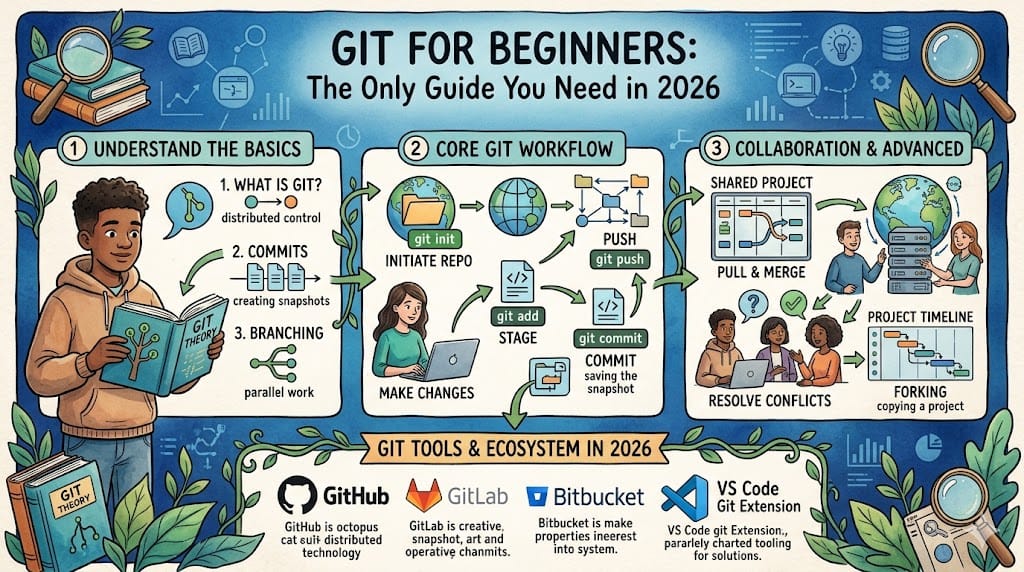
Git is a version control system — software that tracks changes to files over time, allowing you to recall specific versions later, compare changes between versions, and collaborate with multiple people on the same files simultaneously.
It’s worth clarifying what Git is not, because the confusion causes real problems for beginners.
Git is not GitHub. Git is the version control software that runs locally on your machine. GitHub is a cloud hosting service for Git repositories — a website where you can store your Git repos remotely, share them, and collaborate. Git existed years before GitHub. You can use Git without GitHub entirely. GitHub is one of several services (along with GitLab and Bitbucket) that host Git repositories remotely.
Git is not a backup system — though it provides some of the benefits of one. A Git repository tracks changes to code, not arbitrary file backups. Don’t try to use it as Dropbox for your entire computer.
Git does not automatically sync — changes only appear on a remote server when you explicitly push them. New developers sometimes assume that committing means saving to the cloud. It doesn’t. A commit saves to your local repository. Pushing sends it to the remote.
With those distinctions clear, let’s set it up and start using it.
Installing Git and First-Time Configuration
Installation:
- macOS: Git ships with the Xcode Command Line Tools. Run
git --versionin your terminal — if it’s not installed, macOS will prompt you to install it automatically. Alternatively, install via Homebrew:brew install git - Windows: Download from git-scm.com. The Git for Windows installer includes Git Bash, a terminal environment that gives you Unix-style commands on Windows.
- Linux (Ubuntu/Debian):
sudo apt install git
After installation, verify it worked:
bash
git --version
# git version 2.43.0
First-time configuration:
Before you make your first commit, tell Git who you are. This information is attached to every commit you make — it’s how collaborators (and future you) know who made which changes.
bash
git config --global user.name "Your Name"
git config --global user.email "you@example.com"
The --global flag applies these settings to all repositories on your machine. You can override them per-repository by running the same commands without --global inside a specific project folder.
The Mental Model: Repository, Staging Area, Working Directory
Before learning commands, understanding Git’s three-layer structure will save you from confusion that trips up most beginners.
Working directory — this is your project folder as you see it in your file system. When you edit a file, you’re working in this layer. Git knows the files exist here but doesn’t automatically track every change you make.
Staging area (also called the index) — a preparation zone where you explicitly add changes before committing them. Think of it as a box you’re packing before shipping. You choose exactly what goes into the box. You can stage some changed files while leaving others unstaged — which lets you make one logical, focused commit even if you changed many files.
Repository (the .git folder) — the database where Git permanently stores every commit. Once a change is committed, it’s in the repository forever (unless you deliberately rewrite history, which is an advanced operation you won’t need early on).
The flow is always: Working Directory → Staging Area → Repository. Changes move forward through these three layers explicitly. Understanding this prevents the single most common beginner mistake: making changes, running git commit, and being confused why nothing was saved — because the files were never staged first.
The Core Workflow: Six Commands That Cover Everything
git init — Start Tracking a Project
bash
mkdir my-project
cd my-project
git init
git init creates a new Git repository in the current folder by adding a hidden .git directory. This directory is the repository — it contains the complete history of every commit, all your branches, and all of Git’s internal state. Never manually edit or delete files inside .git.
You only run git init once per project. If you’re starting from an existing remote repository (someone else’s project on GitHub, or your own), you’d use git clone instead — which both downloads the files and initializes the local repository in one step.
git status — See What’s Changed
bash
git status
Run this constantly. git status shows you which files have been modified, which are staged for the next commit, and which are untracked (new files Git hasn’t seen before). It costs nothing to run and removes ambiguity about the state of your working directory.
On branch main
Changes not staged for commit:
  modified:   index.html

Untracked files:
  styles.css
This output tells you: index.html has been modified but not staged; styles.css is a new file Git doesn’t track yet.
git add — Stage Changes
bash
git add index.html          # Stage a specific file
git add styles.css          # Stage another specific file
git add .                   # Stage all changes in the current directory
git add moves changes from your working directory into the staging area. Use git add . when you want to stage everything; use specific filenames when you want to stage only some changes.
After running git add index.html:
bash
git status
# Changes to be committed:
#   modified: index.html
# Untracked files:
#   styles.css
index.html is now staged. styles.css is still untracked — you chose not to stage it yet.
git commit — Save to the Repository
bash
git commit -m "Add navigation menu to index.html"
git commit takes everything in the staging area and permanently saves it to the repository as a snapshot. The -m flag lets you write the commit message inline. Every commit requires a message — make it descriptive enough that someone reading the history six months from now understands what changed and why.
What makes a good commit message:
- Bad:
"fix","changes","update" - Good:
"Fix broken image path on product page","Add email validation to signup form","Refactor checkout logic to reduce duplication"
The convention most teams follow: write commit messages in the imperative mood as if completing the sentence “This commit will…” — so “Add navigation menu” rather than “Added navigation menu” or “Adding navigation menu.”
After committing, run git log to see the repository history:
bash
git log --oneline
# a3f2c1d Add navigation menu to index.html
# 8b1e4a9 Initial commit
Each commit has a unique SHA hash (the seven-character string). This is how Git identifies specific points in history — and how you’d navigate to a specific commit if you ever needed to.
git branch and git checkout — Work Without Risk
Branches are where Git’s real power becomes apparent.
A branch is an independent line of development — a parallel version of your codebase where you can make changes freely without affecting the main branch (usually called main or master). When your changes are ready, you merge the branch back.
bash
git branch feature-contact-form    # Create a new branch
git checkout feature-contact-form  # Switch to it
Or in one step with the shorthand:
bash
git checkout -b feature-contact-form
Now you’re on feature-contact-form. Any commits you make here don’t touch main. If the feature turns out badly, you delete the branch and main is completely unaffected. If it goes well, you merge it in.
bash
git branch          # List all branches
# * feature-contact-form
#   main
The asterisk shows your current branch.
git merge — Combine Branches
When your feature is done, switch back to main and merge:
bash
git checkout main
git merge feature-contact-form
If main hasn’t changed since you branched, the merge is a “fast-forward” — Git simply moves the main pointer forward to include the new commits. Clean and instant.
If both branches have diverged (someone else committed to main while you were working on your feature), Git performs a “three-way merge” — comparing the two branch tips with their common ancestor and automatically combining the changes. Most of the time this works without issues. When the same lines of the same file were changed differently in both branches, Git pauses and reports a merge conflict — asking you to manually resolve which version should survive.
Merge conflicts look intimidating at first. They’re not. Git marks the conflicting section clearly:
<<<<<<< HEAD
<h1>Welcome to our site</h1>
=======
<h1>Welcome to our store</h1>
>>>>>>> feature-contact-form
You edit the file to keep whichever version is correct (or a combination of both), remove the conflict markers, and run git add and git commit to complete the merge.
Working With Remote Repositories: push and pull
Everything so far has happened locally. Connecting to a remote — like GitHub — adds two more essential commands.
Setting up a remote:
If you created a new repository on GitHub, it gives you a URL. Connect your local repo to it:
bash
git remote add origin https://github.com/yourusername/your-repo.git
origin is the conventional nickname for your primary remote. You can verify it was added:
bash
git remote -v
# origin  https://github.com/yourusername/your-repo.git (fetch)
# origin  https://github.com/yourusername/your-repo.git (push)
git push — Send Local Commits to Remote
bash
git push origin main
This sends the commits on your local main branch to the remote named origin. First-time push to a new branch:
bash
git push -u origin main
The -u flag sets origin main as the default tracking branch — after this, you can just type git push without specifying remote and branch every time.
git pull — Get Remote Changes Locally
bash
git pull
git pull fetches changes from the remote and merges them into your current local branch. Run this at the start of every work session to ensure you’re working on the latest version — especially critical when collaborating with others.
The sequence most developers follow at the start of each session:
bash
git checkout main         # Make sure you're on main
git pull                  # Get the latest changes from remote
git checkout -b my-feature  # Create a new branch for today's work
The Most Common Mistakes (And How to Avoid Them)
Committing to main directly. Get in the habit of always working on a feature branch. Even when working alone. It costs nothing, and it keeps your history clean — every discrete piece of work lives on its own branch.
Writing meaningless commit messages. Your commit history is documentation. “fix” tells no one anything. Write the message you’d want to read at 11pm when something is broken in production and you’re searching the log trying to understand what changed.
Staging everything with git add . without checking what’s there. Run git status before git add .. Confirm you’re not accidentally staging debug code, environment files with API keys, or generated files that shouldn’t be committed. A .gitignore file in your project root tells Git which files to permanently exclude — add node_modules/, .env, .DS_Store, and other irrelevant files there immediately.
Panicking at merge conflicts. They look alarming. They’re not. Read the conflict markers carefully, edit the file to the correct final version, remove the markers, stage the file, and commit. That’s the entire resolution process.
The Daily Git Workflow, Consolidated
Once you’re comfortable, your everyday Git usage collapses into a simple repeating loop:
bash
# Start of session
git pull                          # Get latest changes

# During work
git status                        # Check what's changed
git add filename.js               # Stage specific files
git commit -m "Description"       # Commit with clear message

# End of session / feature complete
git push                          # Send to remote
Everything else — branching strategies, rebasing, cherry-picking, stashing — builds on top of this foundation. Learn it until it’s muscle memory. The advanced features will make sense when you need them precisely because the fundamentals are solid.
Up next: Print-on-Demand vs Dropshipping — an honest comparison of margins, fulfilment speed, and branding control to help you choose the right ecommerce model.